It's a text file
Keep it next to the code it talks about, diff it, review it in a pull request and reuse slides between talks.
Use cases / Slides in Markdown
Write the talk as one text file, split it into slides with three dashes, and present it in the browser. Five minutes from an empty folder to a deck you can present, export or publish.
Why it fits
Keep it next to the code it talks about, diff it, review it in a pull request and reuse slides between talks.
Headings, lists, tables, images and code are plain Markdown. Steps, layouts, maths, diagrams and React components are there when a slide needs them.
Present it from your laptop, build it into a static site, export a PDF or PPTX file, or publish it with a live room.
The deck
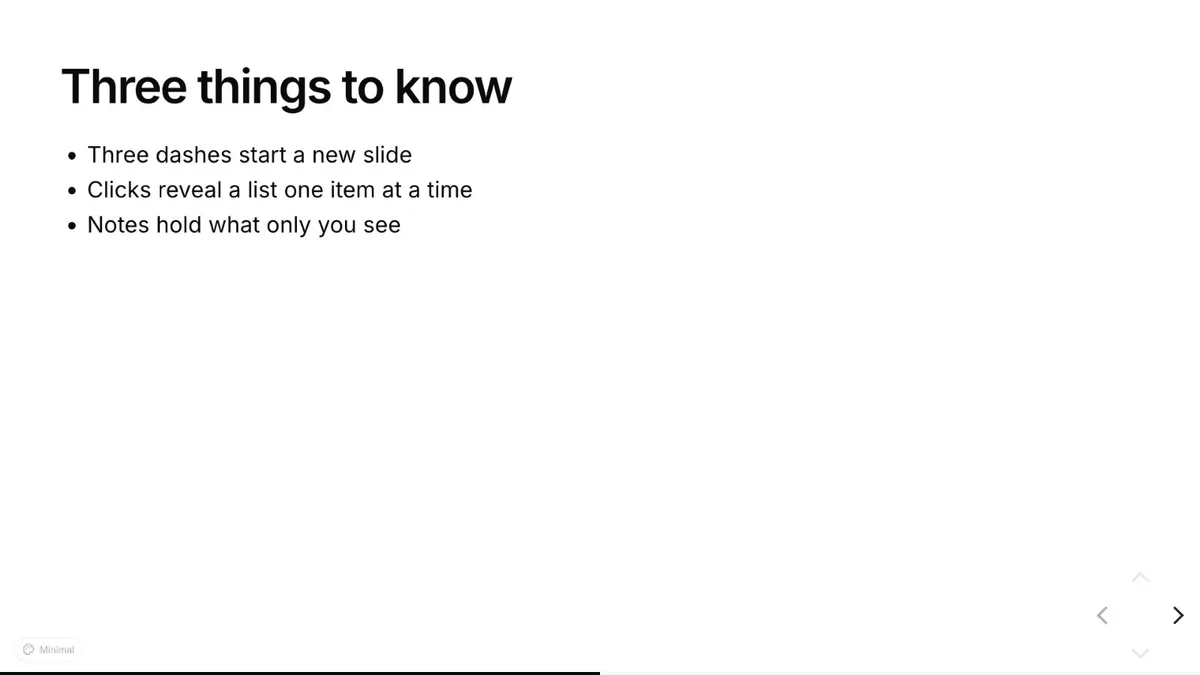
A complete deck: three slides, a list revealed one item at a time, speaker notes and a two-column layout. It passes kadal-deck check as it stands.
---
title: My first deck
---

# Hello, room

A talk written in Markdown

---

## Three things to know

<Clicks>

- Three dashes start a new slide
- Clicks reveal a list one item at a time
- Notes hold what only you see

</Clicks>

<Notes>Press S for the presenter view: these notes show there, never on the projector.</Notes>

---
layout: two-cols
---

## Plain Markdown

**Bold**, _italic_, [links](https://deck.kadal.cc), lists and tables.

::right::

## And code

```sh
npm create @kadal/deck@latest my-talk
```
Step by step
You need Node 20.19 or newer. This makes a folder with deck.mdx in it; then run npm install and npm run dev, and open the address it prints.
npm create @kadal/deck@latest my-talk pnpm create @kadal/deck my-talk yarn create @kadal/deck my-talk bun create @kadal/deck my-talk Open deck.mdx. The YAML block at the top sets the title and theme; every --- starts a new slide. The slide you're looking at updates as you save.
Press S for the presenter view: your notes, the next slide and a timer. The audience sees only the slides.
Export a PDF, PNG or PPTX file, build a static site for any host, or publish to a link with a live room for the audience.
npx kadal-deck export --format pdf pnpm exec kadal-deck export --format pdf yarn kadal-deck export --format pdf bunx kadal-deck export --format pdf Read next
Other uses: Conference talks · Lectures and teaching · Pitch decks · Team demos and reviews · Workshops