
Your first deck in 5 minutes
In this tutorial you make a deck from the starter, add a slide of your own, present it with the presenter view, and publish it to a link. You need Node 20.19 or newer and a terminal. The steps use npm; pnpm, Yarn and Bun work the same way (Install has their commands).
1. Create the deck
Section titled “1. Create the deck”npm create @kadal/deck@latest my-talkcd my-talknpm installpnpm create @kadal/deck my-talkcd my-talkpnpm installyarn create @kadal/deck my-talkcd my-talkyarn installbun create @kadal/deck my-talkcd my-talkbun installThe first command copies the starter into my-talk/; npm installpnpm installyarn installbun install fetches the engine and its
packages, which takes a minute or two the first time.
2. Start it
Section titled “2. Start it”npm run devpnpm devyarn devbun run devOpen the address it prints, http://localhost:5173/. You see the starter’s title slide:
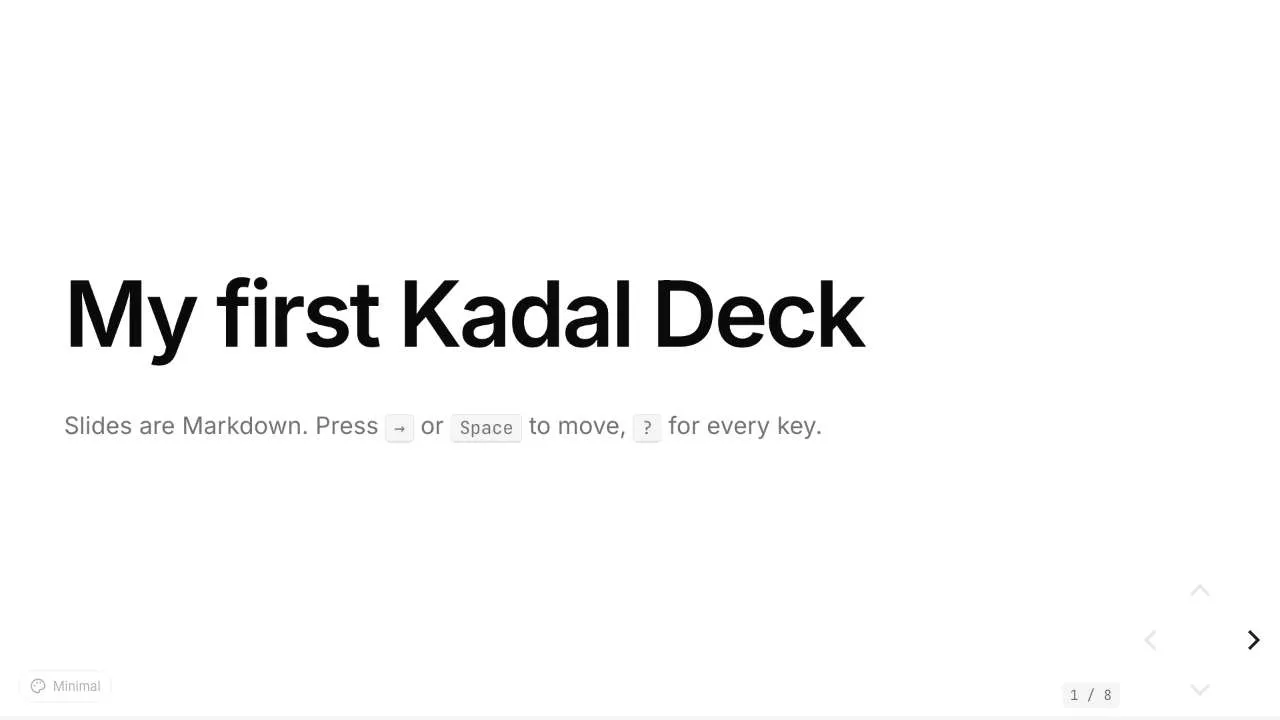
Move with → or Space, go back with ←, and press ? for every key. Leave the dev server running for the rest of the tutorial.
3. Write a slide
Section titled “3. Write a slide”Open deck.mdx in your editor. The YAML block at the top is the headmatter: the deck’s
settings. Change the title and author:
---title: Why the tide is lateauthor: Ana Silvainfo: A starter deck. Edit deck.mdx and the page reloads as you type.theme: minimal---Slides are separated by a line of three dashes, ---. Find the # Thank you slide near the end
and add this slide just before it:
---
## Three things move the tide
<Clicks>
- The Moon pulls the water towards it- The Sun adds a smaller pull of its own- The shape of the coast slows it down
</Clicks>
<Notes>Start with the Moon. [click] Then the Sun: about half the Moon's pull. [click] And the coast,which is why Chennai's high water comes later than the Moon says. [click]</Notes>
Save. The browser updates the slide you are on without reloading. Go to your new slide: the list
is empty at first, and each press of → reveals one point. That is what <Clicks> does.
The <Notes> block never shows on the slide; it is for you.
4. Try a different look
Section titled “4. Try a different look”Press T to open the theme menu and pick Rla or Stack; D switches between light and dark. The choice is only for your screen. To change the deck’s theme for everyone, set it in the headmatter:
theme: stackminimal, rla and stack are built in. Thirteen more come as packages; the
theme gallery shows them all, and Pick and customise a theme
installs one.
5. Present it
Section titled “5. Present it”Go back to the first slide and press S. The presenter view opens in its own window: the current slide, the next one, your notes and a timer.
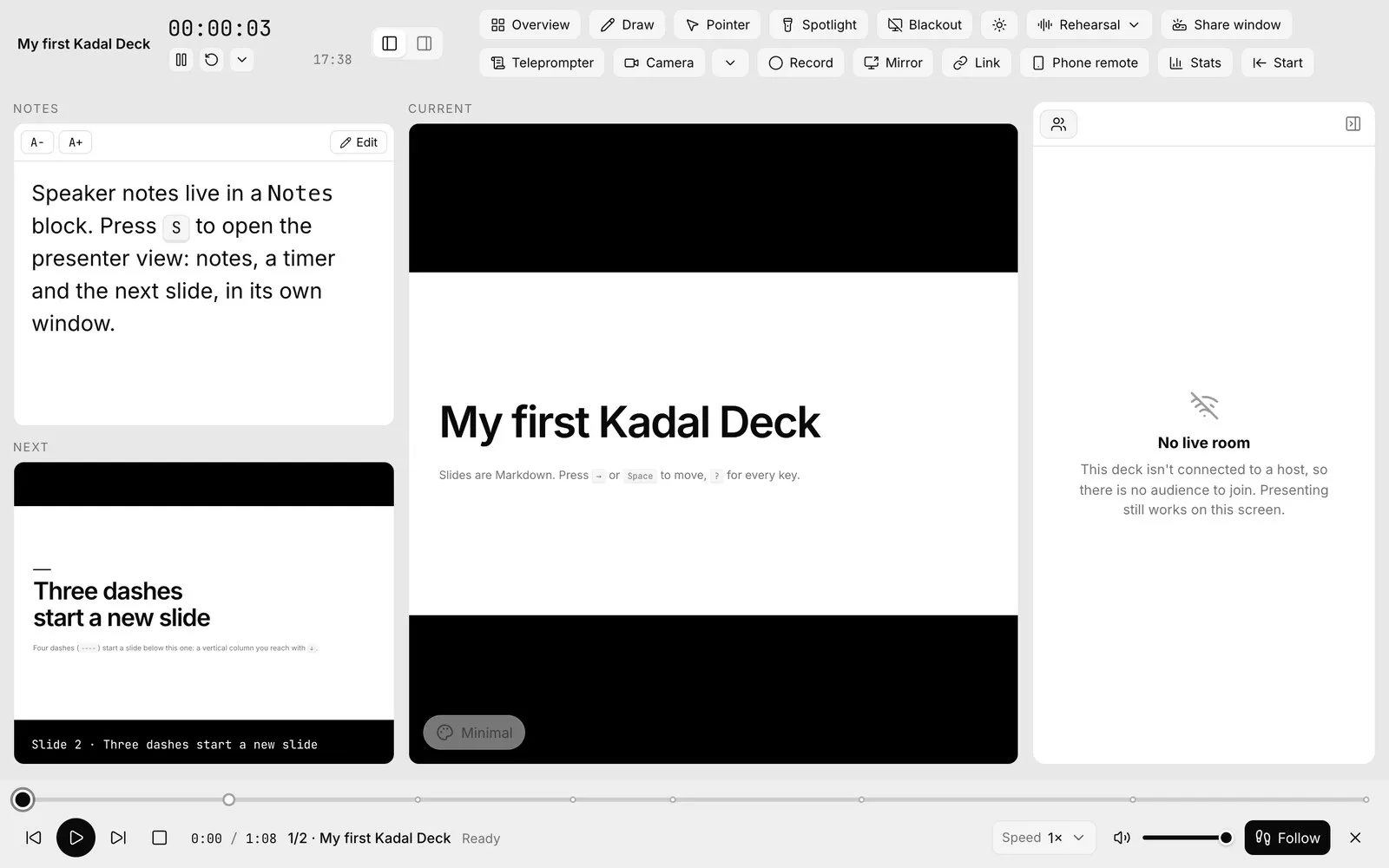
Drive the talk from either window; they stay in step. On your slide, the notes light up part by
part as you click, because each [click] in the notes starts the part for the next step. Click a
marker to jump to its step.
To present, put the first window on the projector and press Shift F there for full screen, or use Share window in the presenter view for a video call. Phone remote turns your phone into a clicker with a laser pointer; see Present from your phone.
6. Check it
Section titled “6. Check it”In a second terminal, in my-talk/:
npx kadal-deck checkpnpm exec kadal-deck checkyarn kadal-deck checkbunx kadal-deck check9 slides · 0 errors · 0 warningscheck finds what would break on stage: a misspelt component, a missing image, a layout that
doesn’t exist, a slide that won’t compile. Run it before every talk.
7. Publish it
Section titled “7. Publish it”Publishing puts the deck on deck.kadal.cc with a link anyone can open, and gives it a live room: your audience can follow along, react, answer polls and ask questions from their phones. The Free plan is enough.
npx kadal-deck loginpnpm exec kadal-deck loginyarn kadal-deck loginbunx kadal-deck loginThis prints a short code and opens deck.kadal.cc in your browser. Sign in with Google or GitHub, pick a handle for your workspace if it’s your first time, and approve the code. Then:
npx kadal-deck publishpnpm exec kadal-deck publishyarn kadal-deck publishbunx kadal-deck publishIt builds the deck for its address, uploads it and ends with the link (your numbers will differ):
publish @ana/my-talk → https://deck.kadal.cc…Published version 1: 296 files (12.1 MB), 296 uploaded.https://decks.kadal.cc/@ana/my-talk/Open the link. Your audience joins at the same address plus join/, or by scanning the QR code
in the presenter view’s Room tab. Run publish again after any change: it uploads only what
changed and adds a new version, and the link stays the same.
- Give a talk with a live audience: polls, questions and a quiz.
- MDX slides: layouts, notes, includes and your own components.
- Clicks and animation: more ways to pace a slide.
- Code: code that steps through itself, and live code.
- Use Kadal Deck in VS Code: a preview beside the file.